When to use it
When you need to display Winerim or qr logo at the pdf at the Editor.
Requirements and permissions
- Session initiated at the Winerim Editor.
- Access to the module shown and the exact role depends on the account and should be confirmed with an administrator.
Steps
- Active logo if the card should be visually identified.
- Check that the visible logo is that of Winerim or the right brand, never an alien brand.
- It activates QR if you want the client to open the digital card from paper.
- Check that QR leads to the right card before sharing.
Expected result and readback
Result: Check that QR leads to the right card before sharing.
Check: Check that QR leads to the right card before sharing.
Common errors
- Check that old logos or from another restaurant do not appear before sending the PDF to the client.
- Amend a reference, variant, period or restaurant other than intended.
Recovery or rollback
Go back to the previous screen, clear filters or reload once. Do not repeat a write action until check if the first was applied.
Evidence
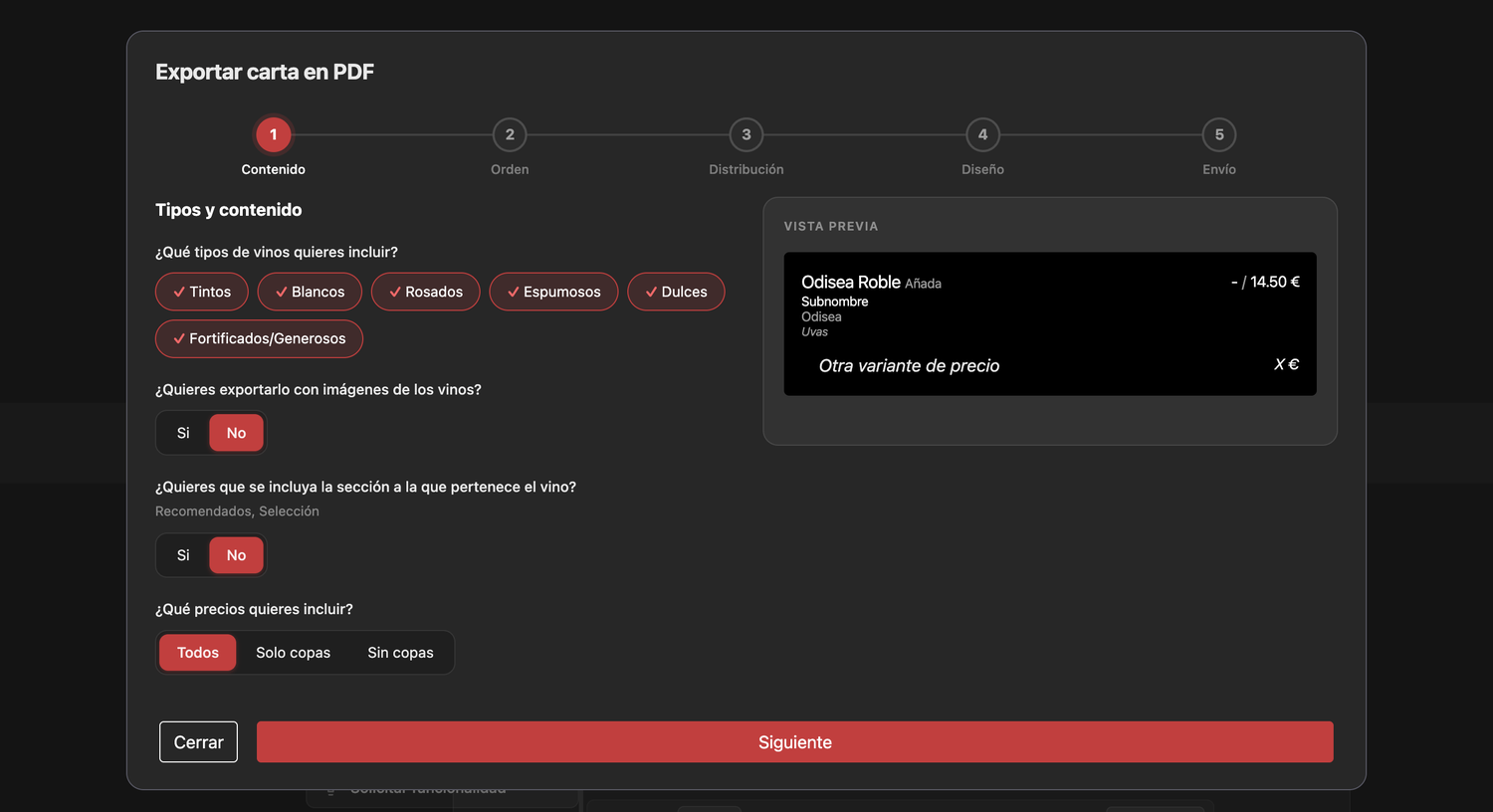
Full screenshot
Frames reviewed: 2026-09-28. Screenshots: 2026-06-15.